Using TAMID with Zoom
Connecting Zoom, scheduling a meeting, and what happens to the recording afterwards.
What the integration does
TAMID schedules donor meetings on your own Zoom account, lets Zoom invite the donor, and — if you chose to record — files the transcript on that donor's history so the conversation is not lost. TAMID never hosts on its own licence and never emails a donor.
Connecting
- Open any donor in TAMID and find “Schedule a meeting”.
- Choose Connect Zoom. Zoom asks you to approve the permissions listed below.
- You return to TAMID connected. TAMID checks whether the account can record and transcribe, and says so plainly if it cannot.
Scheduling a meeting
- Give the meeting a title, a time and a length.
- Optionally write an agenda and talking points. These are yours — they are never sent to Zoom and never appear in the donor's invitation.
- Decide about recording. It is off unless you switch it on. If you do, TAMID shows you the sentence to say at the start of the call and keeps a record that it showed you.
- Schedule. Zoom emails the donor the invitation and the calendar file. If your plan cannot do that, TAMID tells you and gives you the link to send yourself.
During and after
- Each meeting has a panel with the donor brief, the last conversation, outstanding commitments and the join button.
- You can type what was said at any point; it lands on the same record as the meeting.
- If the call was recorded, TAMID fetches the transcript when Zoom finishes producing it — usually about twice the length of the call — and files it against the donor.
- You can then ask TAMID to read the transcript. Every fact it proposes quotes the transcript, and nothing is recorded about the donor until you approve it.
How the data flows
Every call to Zoom is made by TAMID's server. No Zoom credential or token ever reaches your browser, and TAMID cannot join a meeting — there is no recording bot.
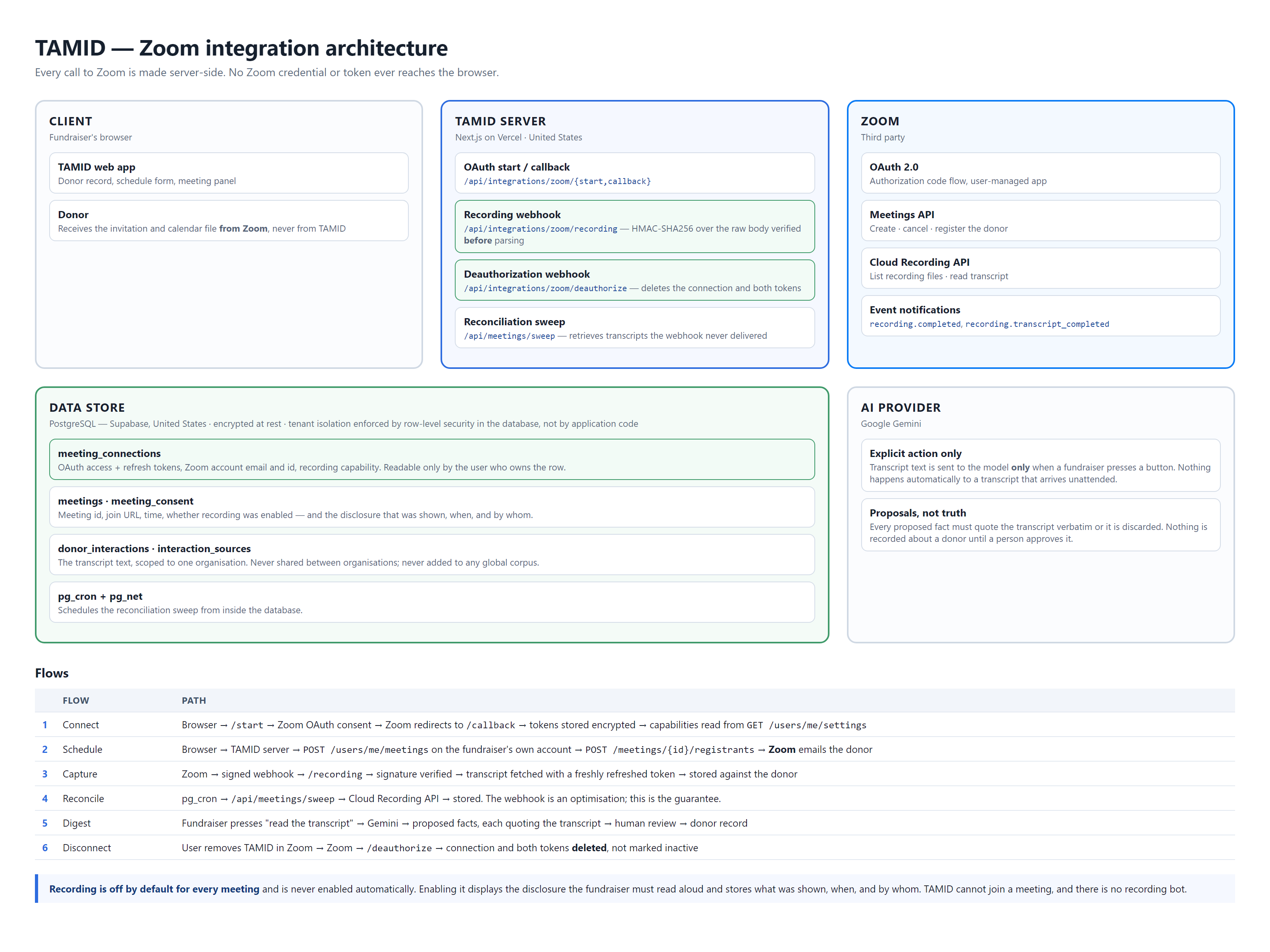
Open the diagram at full size. It is generated from this application's own source, so it stays true: every box in it is a real route or table.
Permissions TAMID asks for, and why
| Scope | Why it is needed |
|---|---|
meeting:write:meeting | Create the meeting on your account. |
meeting:delete:meeting | Cancel it. Without this a meeting could be created and never withdrawn, leaving the donor holding an invitation to a call you cancelled. |
meeting:write:registrant | Register the donor so Zoom sends the invitation. This is what lets TAMID avoid emailing donors itself. |
user:read:settings | Read whether the account can record and transcribe, so the recording option is offered only when it would work. |
user:read:user | Read the account email and identifier, to attach the connection to the right person. |
cloud_recording:read:list_recording_files | Find the transcript file for a meeting you recorded. |
cloud_recording:read:recording | Read that transcript. |
TAMID asks for nothing beyond these. It does not read your other meetings, your contacts, or recordings of calls it did not schedule.
Disconnecting
In Zoom: Settings → Installed Apps → TAMID → Remove. Zoom notifies TAMID and the stored connection and both tokens are deleted. Meetings already on your Zoom account are unaffected.
More
Support · Privacy · Terms of use
Last updated 31 August 2026. Questions about anything on this page: admin@tamid.ai.